Draw walls that connect
Draw a continuous wall chain with a thickness preview and snapping feedback. Joined corners and intersections form a clean outline. Connected endpoints move together when the wall geometry changes.
 ELX Studio
Draw connected walls, edit doors and windows directly on the drawing, and keep the same building geometry behind installation, alarm and evacuation plans. Build dimension sets from the geometry, reuse drawing styles and review readability before export.
All product workflowsConnected building geometry, direct editing and dimensions that follow their source.
Choose the Electrical installation workspace and set Drawing measurements. Use Wall on the toolbar; use Project setup → Shared building source to connect another drawing.
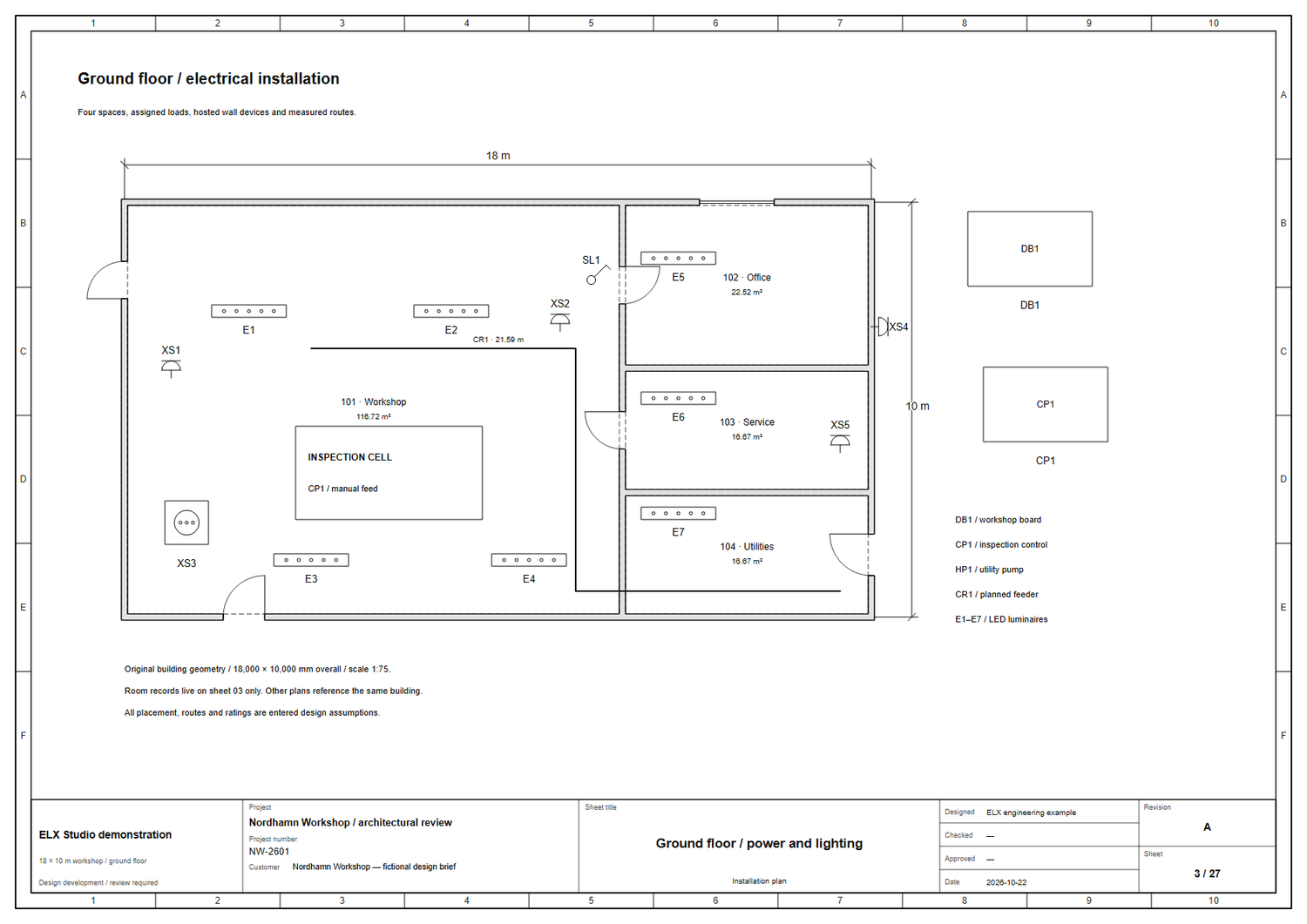
Use these capabilities together as the drawing moves from layout to a reviewed project.
Draw a continuous wall chain with a thickness preview and snapping feedback. Joined corners and intersections form a clean outline. Connected endpoints move together when the wall geometry changes.
Select a wall to drag an endpoint or enter length, angle and thickness beside the drawing. Preview the change before applying it; connected endpoints and attached openings follow. Press L during wall drawing for precise entry. Wall properties also record height, type and base elevation.
Host doors and windows on walls, then drag their centre or edges to move or resize them. Enter exact width and clearance from either wall end, and set a door's hinge and opening direction. Room boundaries and supported mounted devices follow the geometry they reference.
Select a wall or room and choose Dimension wall / room in its properties, or open Insert → Wall / room dimensions. Preview chain or baseline dimensions, optional overall dimensions, axis and spacing. Wall openings and room corners provide linked references, so measurements follow supported geometry edits. Undo removes the set in one step.
Connect another sheet to the building's walls, openings, rooms and architectural symbols. Keep its equipment and annotations local. Edit the building at its source and let the dependent installation, alarm and evacuation drawings follow.
Establish physical measurements with a known reference distance or explicit scale. Create linked print views at the scale you need while the original geometry retains its dimensions. Recalibration is a separate action for correcting the measurement basis.
Open Drawing layers from the toolbar. Set screen and print visibility independently for architecture, rooms, equipment, connections, routes, dimensions, annotations, evacuation markers and reference backgrounds.
Draw cable, tray, duct, conduit or riser paths. Enter elevations, vertical segments and allowances, then review the length breakdown alongside room and opening schedules. Missing measurement information remains visible.
Use View → Drawing styles to save and apply named text, line, dimension and layer presets across selected sheets. Use Drawing readability to inspect printed labels and preview free-text adjustments. PDF and SVG preserve the styled appearance; check R12 DXF line weights and colours in the receiving CAD application.
Set the measurement basis, draw and join the walls, add openings and check the resulting dimensions against your source information.
Choose the shared building source on each dependent sheet. Add the equipment, routes and annotations relevant to that drawing.
Preview a dimension set, apply a drawing style and choose the print layers. Run Drawing readability, review the drawing and schedules, then export or share the project.
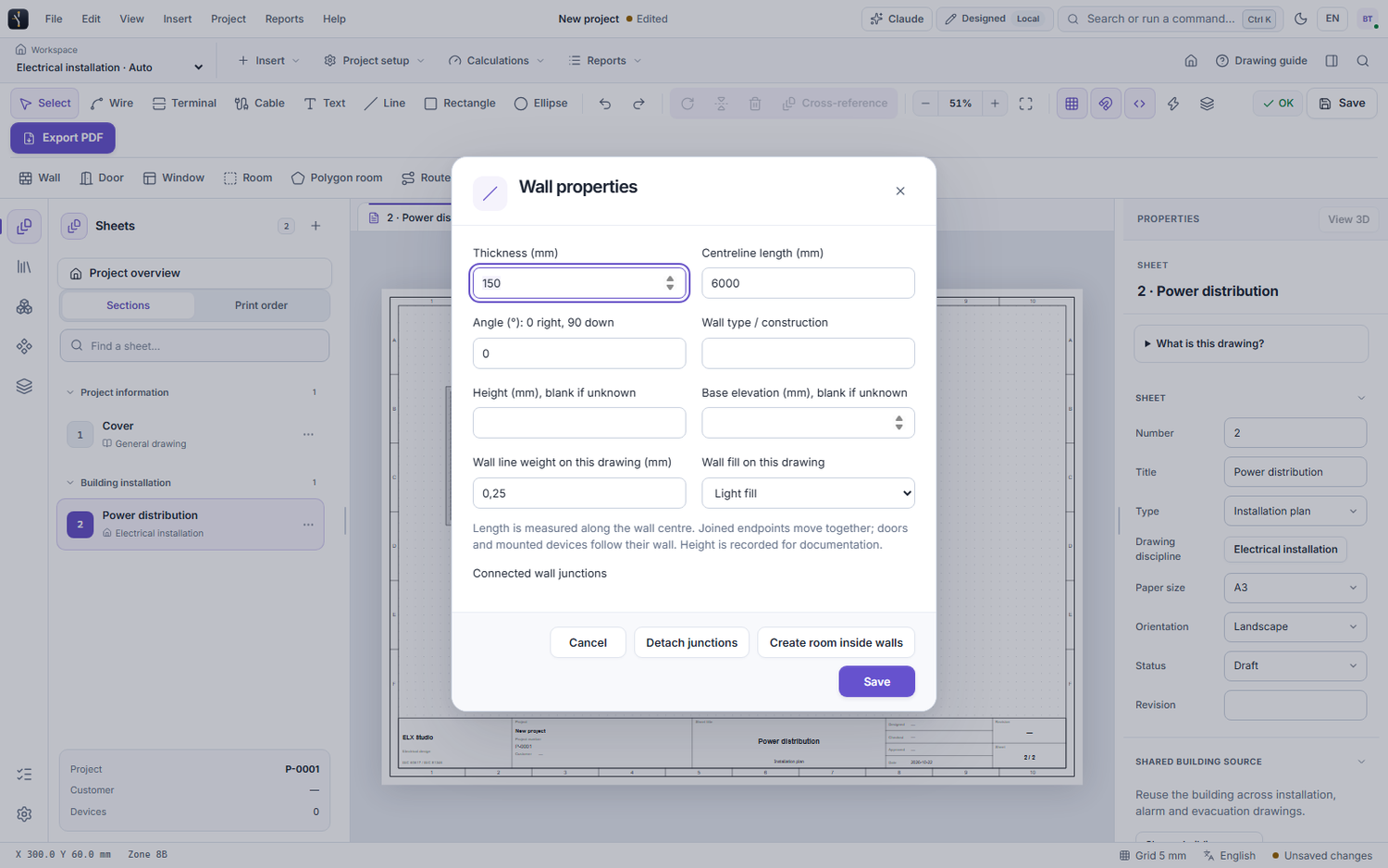
Request trial access and explore these tools in the Windows application, with an English or Swedish interface.