Share with selected teammates
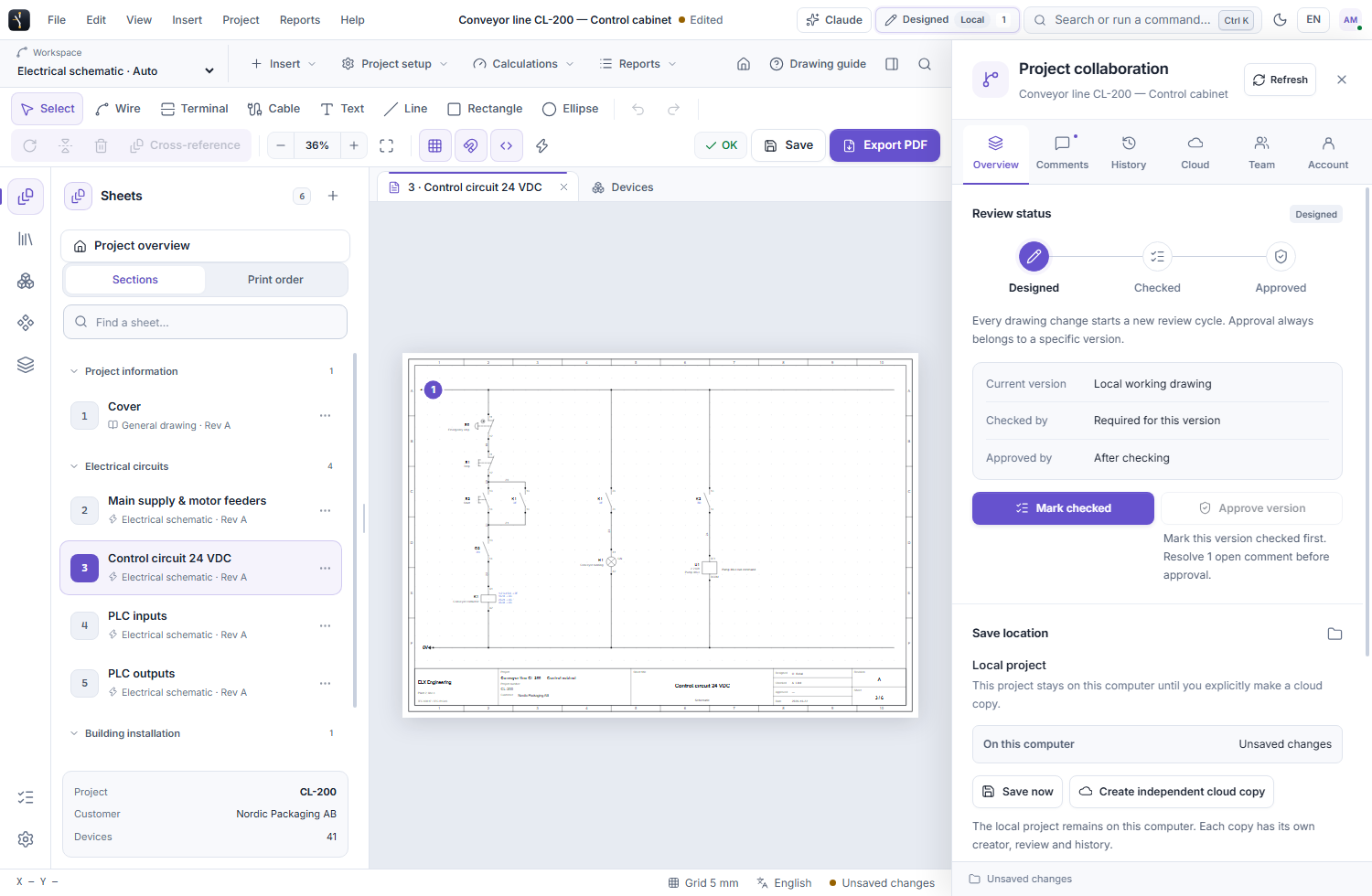
The project creator controls who can access a cloud drawing. Company administrators manage accounts, seats and review roles in the web workspace.
 ELX Studio
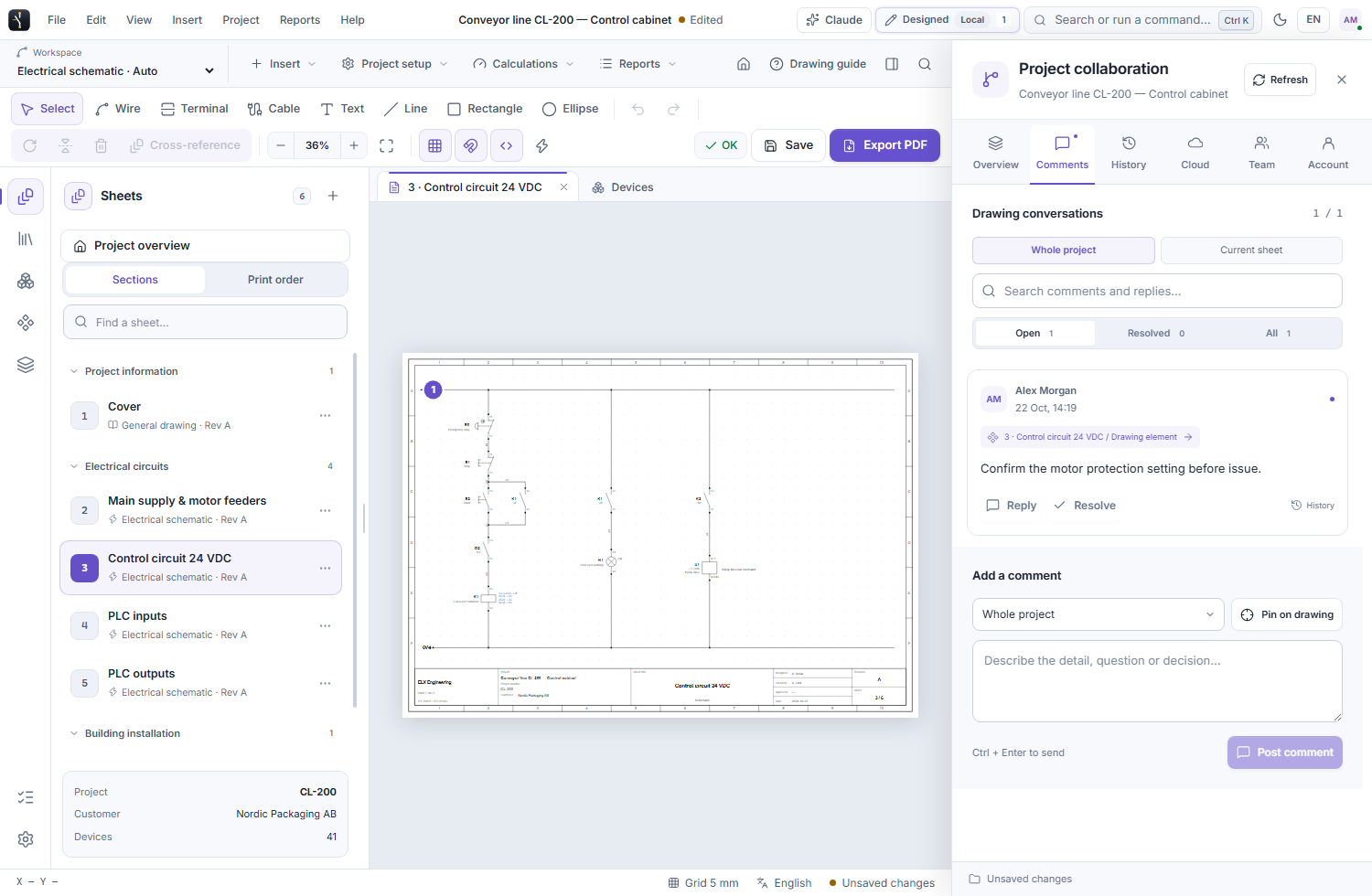
Cloud projects let selected company members work around the same drawing. Put a comment on a specific element or position, reply in its thread and keep the discussion with the project.
All product workflowsShare the cloud project with the people who need to review or edit it.
Open a shared cloud project, then use the collaboration panel or click a comment pin on the drawing.
Use these capabilities together as the drawing moves from layout to a reviewed project.
The project creator controls who can access a cloud drawing. Company administrators manage accounts, seats and review roles in the web workspace.
Attach a discussion to a sheet position or drawing element. Click its pin to open the thread on the drawing, write a reply or resolve it. The full comments sidebar can remain closed while you handle that point.
Live cursors help people working in the same cloud project see where others are focused. Saved changes and project activity remain visible in the collaboration tools.
Search discussions, inspect resolved comments and read the project history when a question comes back later. Comments, history, review and team views stay together in a panel beside the drawing, with keyboard-accessible tabs.
Share a cloud project with teammates who need drawing access.
Place a pin on the sheet or an element and describe the change or question.
Reply, make the drawing change, then resolve the conversation when it has been addressed.
Request trial access and explore these tools in the Windows application, with an English or Swedish interface.