Explore product workflowsDesign / Electrical schematics
PRODUCT / DESIGN

Draw the circuit and keep the project around it.

Build electrical schematics with wireable symbols, device connection points and linked drawing sheets. Start with a cover and one working drawing, then grow the project with tools that follow the purpose of each sheet.

All product workflows
IN PRACTICE

A focused drawing workspace with the project's devices, connections and documentation close at hand.

WHERE TO START IN ELX

New project → choose your design profile → Start small. Add more drawings when you need them.

ELX STUDIO 3.3.4 / APPLICATION VIEWOpen full-size image
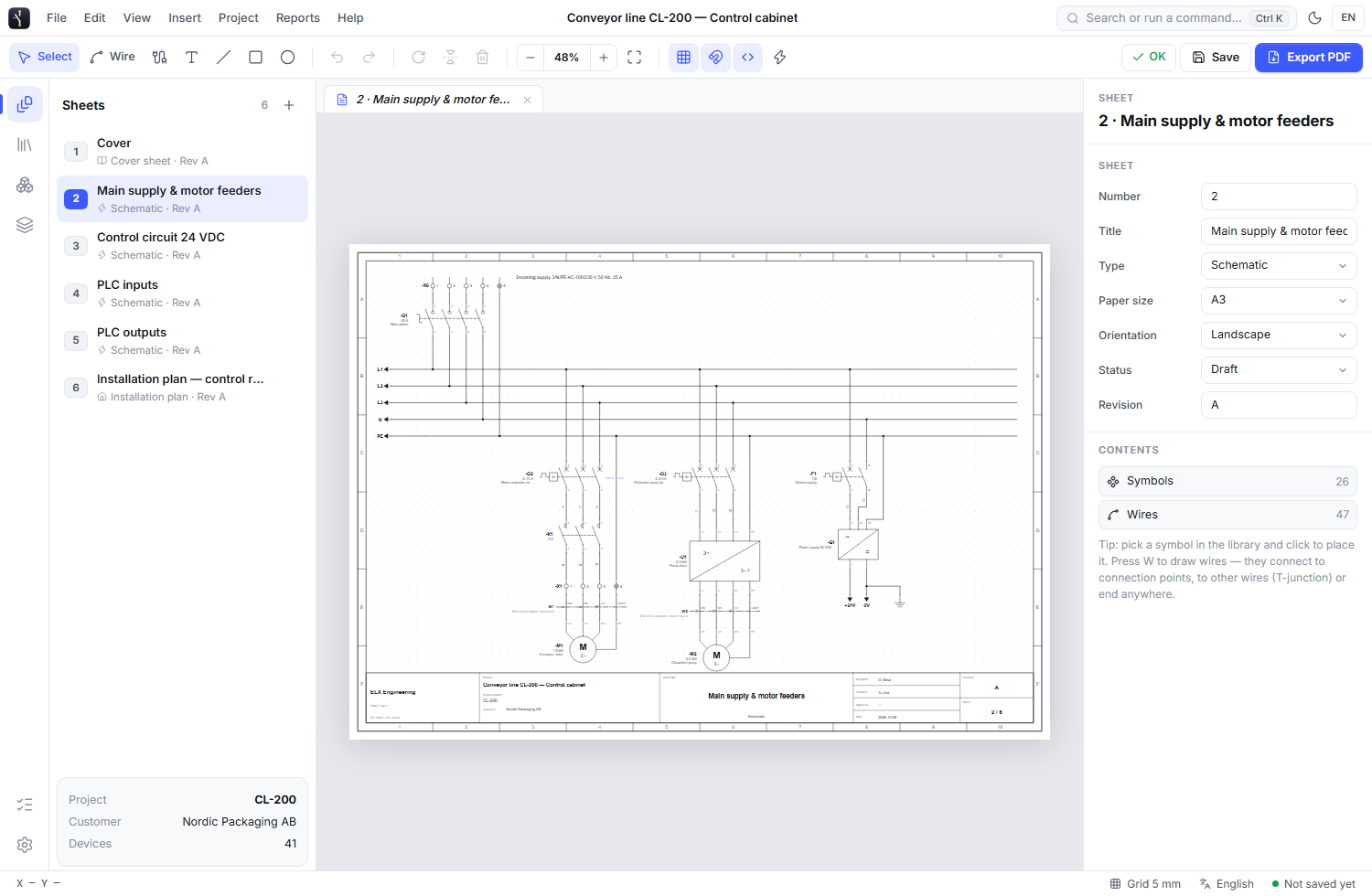
ELX Studio schematic editor showing a six-sheet conveyor control cabinet project, a selected main supply sheet and its sheet properties
THE SCHEMATIC EDITOR / SIX-SHEET SAMPLE PROJECT Fictional sample project data
WHAT YOU CAN DO

The tools in this part of ELX.

Use these capabilities together as the drawing moves from layout to a reviewed project.

01

Organize the drawing into sheets

Choose from six project profiles and eleven drawing workspaces. Add sheets by purpose, then set their number, title, size, orientation and revision. Browse by section or print order and search by title, number or purpose.

02

Place symbols and wireable devices

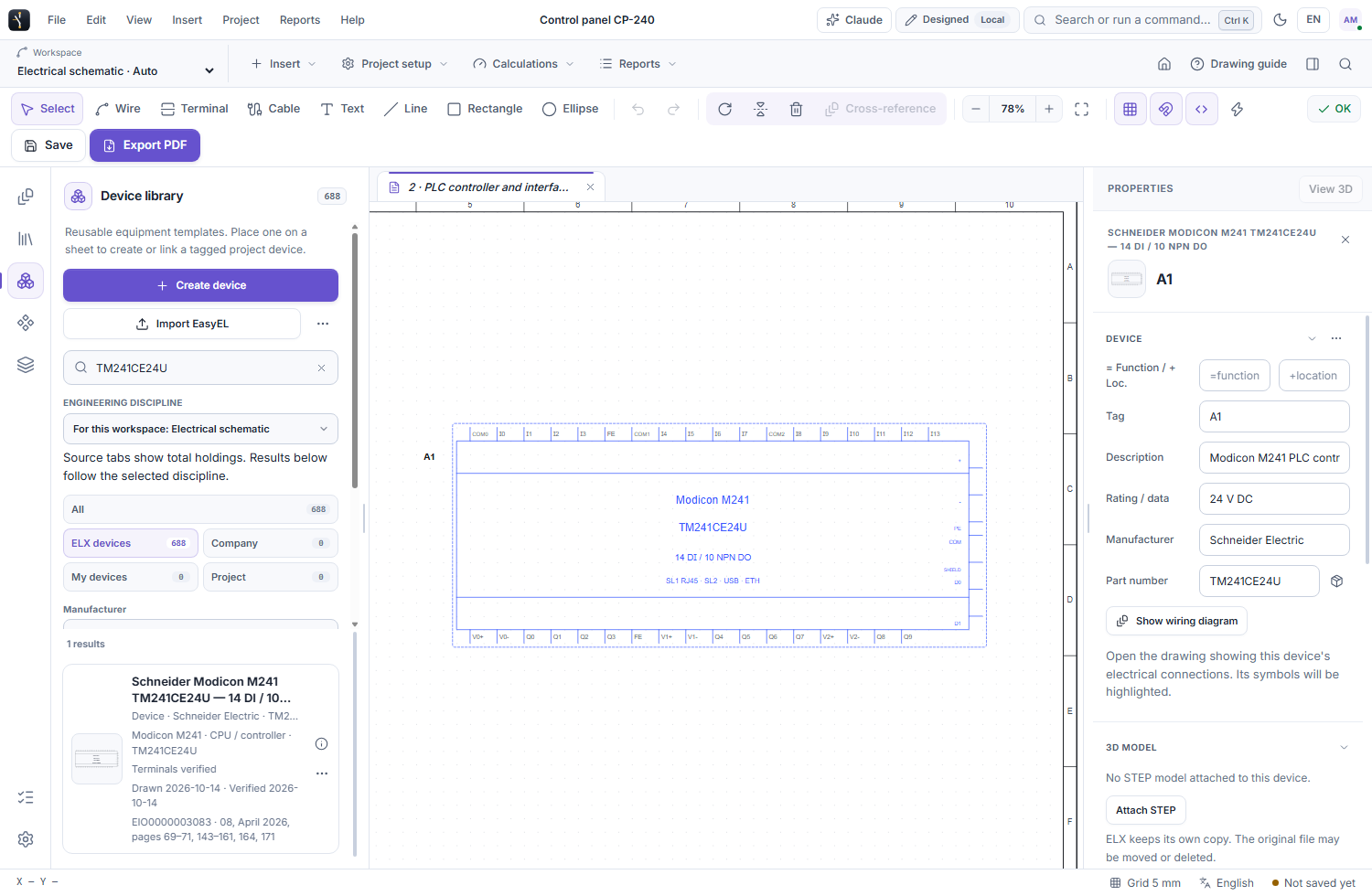
Use reusable artwork from the Symbol Library and tagged equipment from the separate Device Library. Search the installed, personal, company and project sources. Widen a library or detach it into its own window while retaining its tools.

03

Build circuits with editing tools

Draw wires between ports, junctions and free endpoints. Move, rotate, mirror and edit placed items. Name a wire in your own format or leave it unnamed, and drag its label along the wire. Grid, snap, orthogonal wiring and potential colours stay directly accessible.

04

Find an action or a project item

Open Search and choose commands, sheets, devices, wires or cables. Grouped results, recent commands and keyboard navigation help you reach the right action without working through several menus.

05

Create your own reusable drawings

Use the same editor to create symbols or devices, define connection points and adjust the artwork. Convert a selection on a sheet into a reusable symbol or device when an existing library entry does not fit.

06

Bring existing work forward

Import supported EasyEL FCW drawings into a new ELX project. Imported geometry and connections require review before the drawing is used for installation or issue.

A PRACTICAL WORKFLOW

From first action to review.

  1. 01

    Set up the project

    Choose a design profile and review the starting sheets. Use Start small, an optional larger template or a supported EasyEL import.

  2. 02

    Build the circuit

    Place the appropriate symbols and devices, draw the conductors and edit the component properties.

  3. 03

    Review the result

    Inspect the connections and device information before printing or sharing the drawing.

ELX STUDIO 3.3.4 / APPLICATION VIEWOpen full-size image
ELX Studio Device Library with a Schneider Modicon M241 PLC drawing, separate library sources, search filters and device properties
DEVICE LIBRARY / SEPARATE FROM SYMBOLSFictional sample project data
SEE IT IN YOUR WORKFLOW

Try ELX Studio with your own project.

Request trial access and explore these tools in the Windows application, with an English or Swedish interface.

Request trial access
EXPLORE THE NEXT CAPABILITY / 02

Keep every connection in context