01Export the sheets
Choose all sheets, the current sheet or a sheet range in Export PDF, then select the lists to append. Export sheet geometry in SVG or DXF for the recipient's CAD workflow and check the transferred geometry in the receiving application.
02Reuse a drawing style
Open View → Drawing styles to save named presets for text, dimensions, line widths, colours and screen or print layers. Preview a style, apply it to selected drawings and exchange preset files locally. Explicit item overrides are retained; editing a saved preset does not silently change previously styled sheets.
03Review labels before issuing the drawing
Open View → Drawing readability to review overlapping text, small labels, text outside the drawing area and labels covering connection points. Follow findings to the drawing and preview suggested moves for free text before applying them. Findings support visual review; they do not certify the electrical design.
04Include the engineering lists
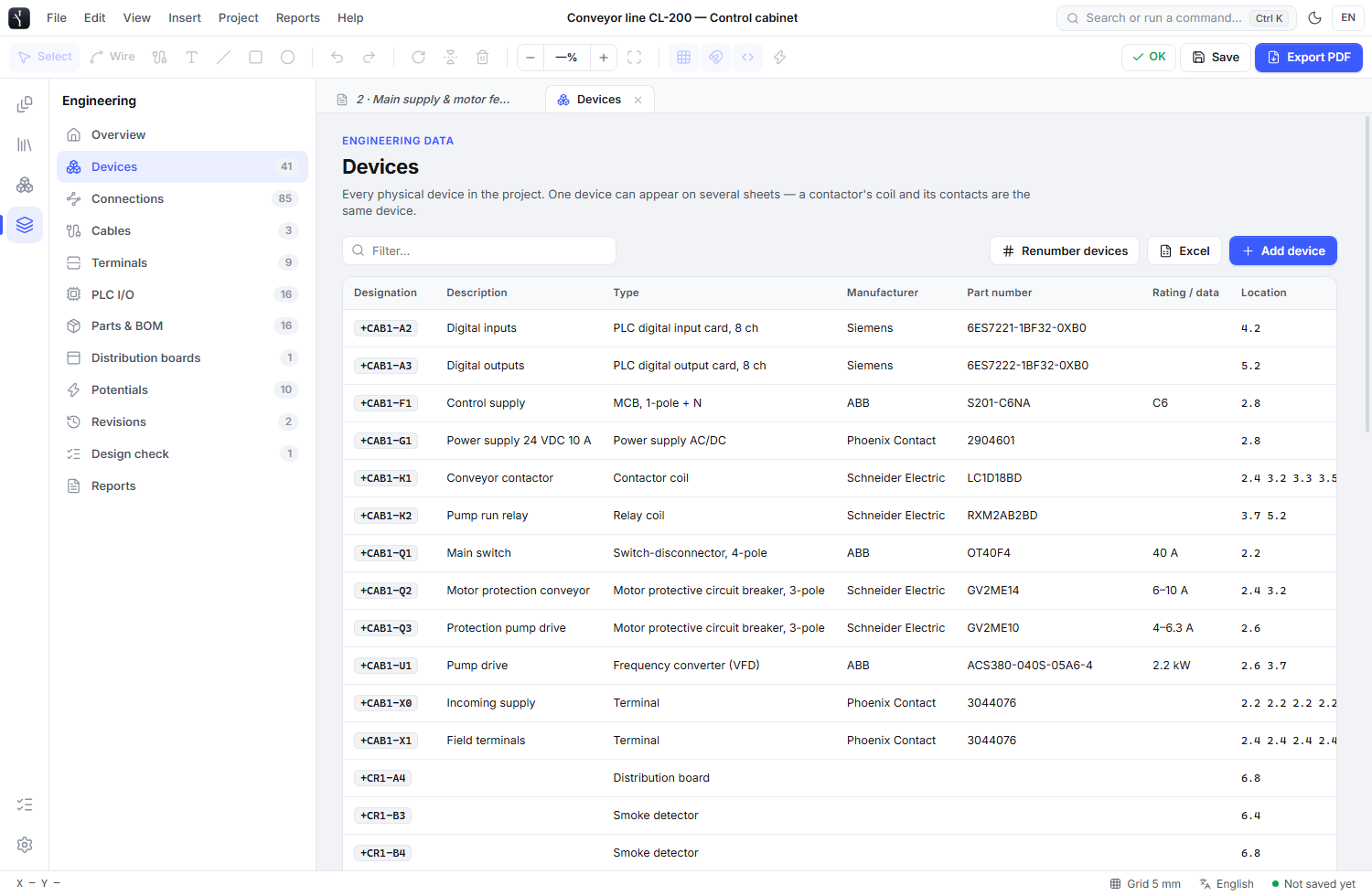
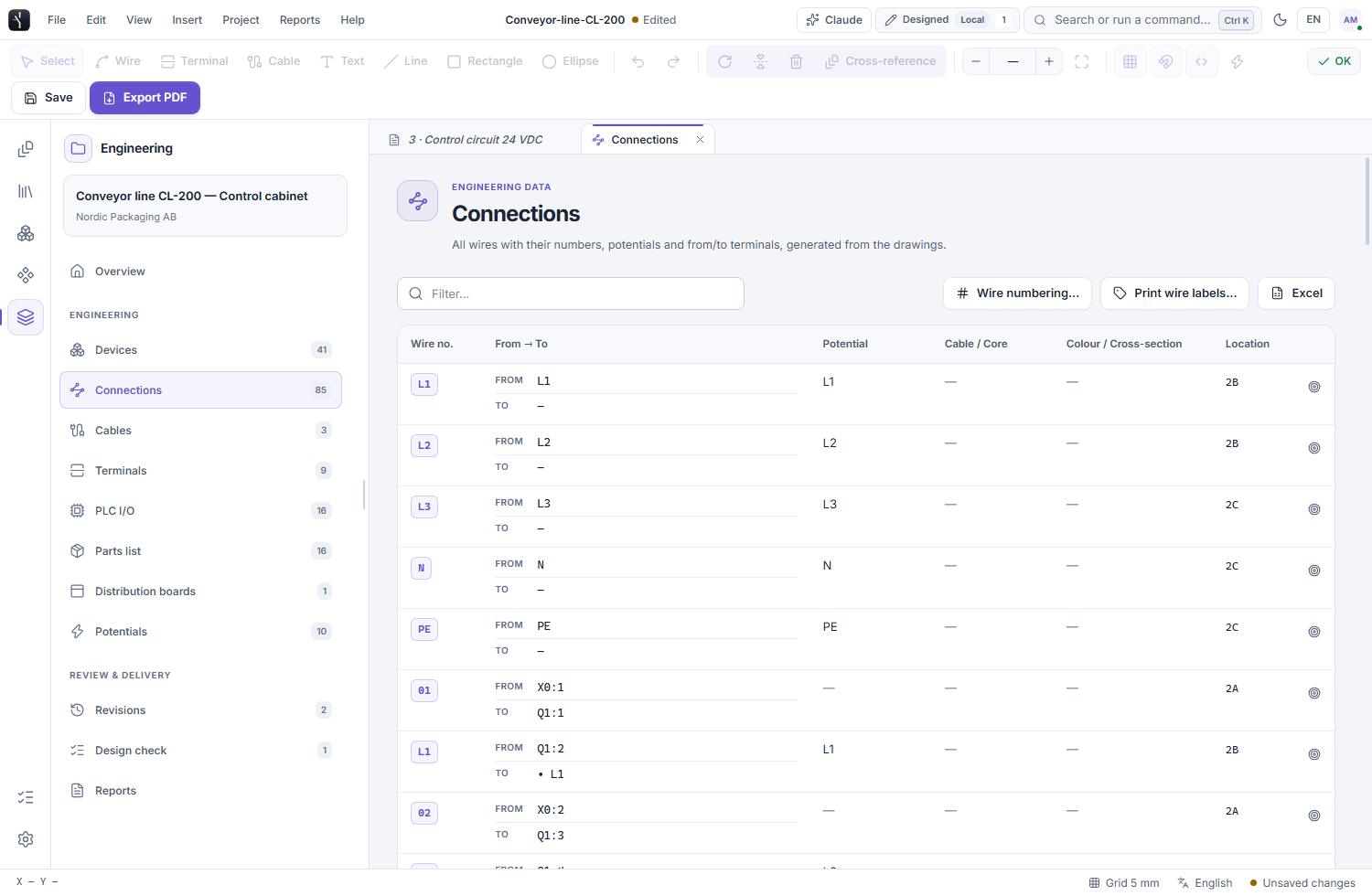
Generate device, connection, cable, terminal, PLC I/O and bill-of-materials information, alongside installation, cabinet and system schedules. Save report layouts with selected columns, headings, widths and sorting. Use them in supported PDF, Excel and CSV exports.
05Prepare wire markers
Select wire labels, set start and end sticker quantities, then export one row per sticker. Layout presets cover several printer applications, with customizable Excel and CSV choices.
06Keep device files with the project
Attach STEP models and documents to devices. Open 3D only when needed, then expand or detach the preview. ELX stores a copy of each attachment and includes referenced files in a portable project package.
07Identify a part in the drawing
Use the report's drawing location to find the relevant item on a sheet. Locations include the sheet number and grid cell so the recipient can compare a list entry with its place in the drawing.
08Send an editable project
A portable ELX package carries the drawing with its project symbols, devices and referenced STEP models or documents. Review the handover options for internal information. Collaborators need a compatible ELX version to edit engineering projects.