Explore product workflowsConnect / Connections, terminals & PLCs
PRODUCT / CONNECT

Follow a connection beyond one line on one sheet.

Trace electrical nets through device ports, wire junctions and explicit cross-sheet links. Plan terminal assemblies, map PLC channels to drawn I/O ports and keep physical equipment tied to its schematic representations.

All product workflows
IN PRACTICE

The drawing and the engineering lists describe the same project model.

WHERE TO START IN ELX

Open Project lists for connections and I/O. Use Project setup for terminal assemblies and PLC racks.

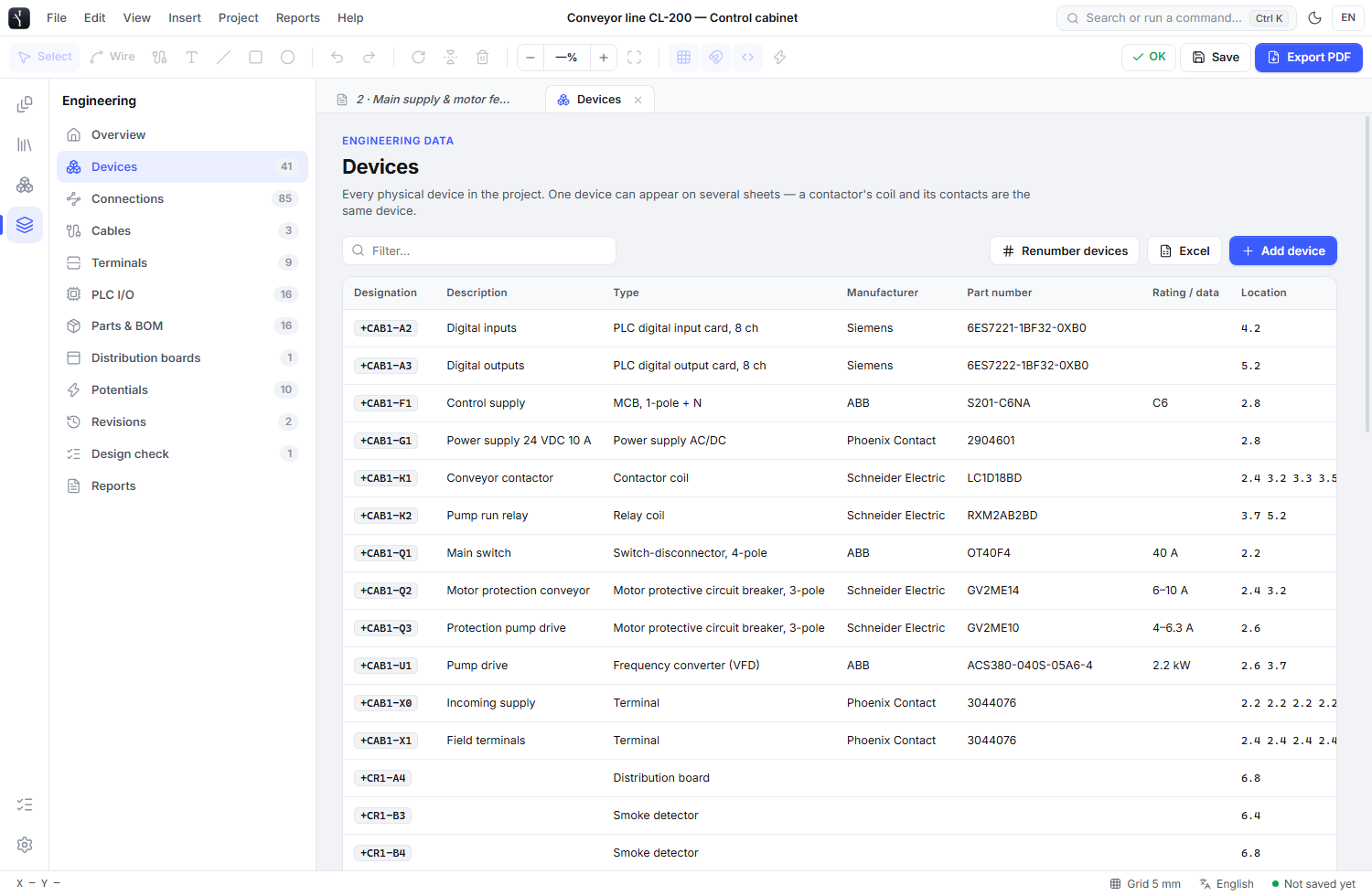
ELX STUDIO 3.3.4 / APPLICATION VIEWOpen full-size image
ELX Studio Engineering view listing sample devices with designation, description, type, manufacturer, part number and drawing location
ENGINEERING VIEW / DEVICE LIST FROM A SAMPLE PROJECT Fictional sample project data
WHAT YOU CAN DO

The tools in this part of ELX.

Use these capabilities together as the drawing moves from layout to a reviewed project.

01

Attach wires to real connection points

A wire can end at a device port, another wire or a junction. Connection dots make attachments visible. Empty ports remain connection points rather than invented wire records, and matching wire labels alone do not join unrelated nets.

02

Continue a wire across sheets

Choose Set cross-reference on a wire, move to another sheet and select its continuation. The explicit link connects the net across sheets, including supply-layout wires. Destination labels update with drawing locations; choose the end on which the label appears.

03

Find the equipment behind a contact

A project device can appear as a coil and contacts, or in a schematic and a cabinet. Show wiring diagram follows that shared device identity to the appropriate drawing; several matches offer a chooser.

04

Plan physical terminal assemblies

Assign exact drawn ports to strip positions and levels, record internal and external sides, and document explicit bridges. Review the assembly diagram and connection schedule. A shared level name by itself does not create an electrical connection.

05

Organize PLC racks and channels

Place existing controller and module devices in their declared order, record compatibility evidence and review known bus-current budgets. Map channel addresses to actual drawn I/O ports so the planner and PLC I/O list use the same information. Documented profiles cover selected exact models.

06

Keep different systems distinct

Telecom, pneumatic and hydraulic relationships remain separate from electrical nets. Document rack positions and cable pair or core assignments without turning every drawn line into an electrical conductor.

07

Use lists and design checks

Inspect devices, connections, cables, terminals, PLC I/O, potentials and parts in Engineering. Search and sort the lists, follow drawing locations and use Tab to move through editable cells. Design checks flag possible issues, including open wires and conflicting designations.

A PRACTICAL WORKFLOW

From first action to review.

  1. 01

    Place the equipment

    Use the correct symbol or device and check its terminal names and connection points.

  2. 02

    Draw and identify the conductors

    Attach wires, assign names or numbers where needed and link continuations across sheets.

  3. 03

    Inspect the engineering view

    Review connection endpoints, locations and design-check findings against the physical circuit.

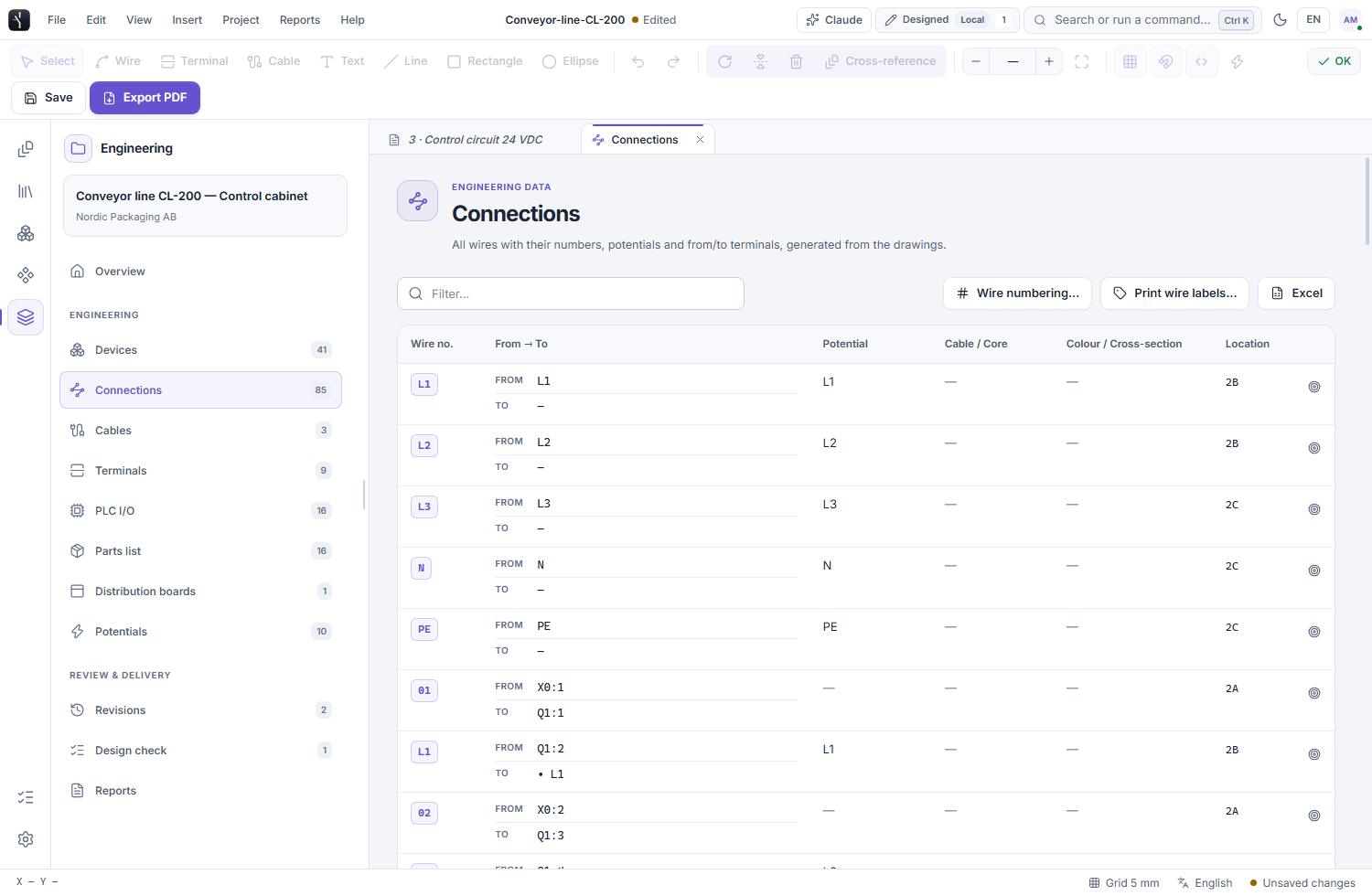
ELX STUDIO 3.3.4 / APPLICATION VIEWOpen full-size image
ELX Studio connection list showing wire endpoints, wire information and drawing locations in a sample electrical project
CONNECTIONS / ENDPOINTS AND DRAWING LOCATIONSFictional sample project data
SEE IT IN YOUR WORKFLOW

Try ELX Studio with your own project.

Request trial access and explore these tools in the Windows application, with an English or Swedish interface.

Request trial access
EXPLORE THE NEXT CAPABILITY / 03

Choose local or cloud projects