Start small, then build the drawing set
New projects default to a cover and one working drawing. Review what each sheet is for before creating it. Larger machine, PLC, building and mixed templates remain available when the job needs them.
 ELX Studio
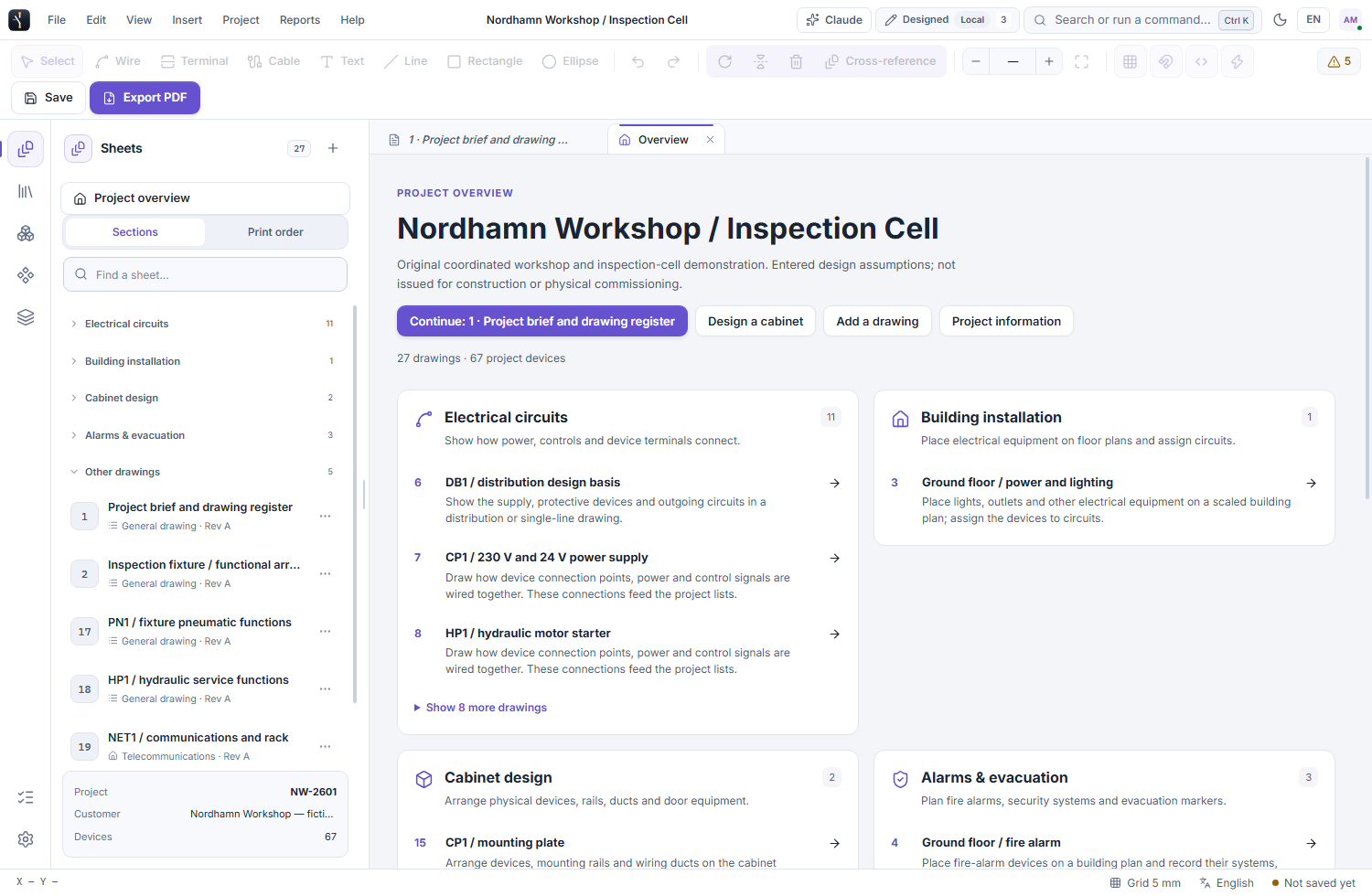
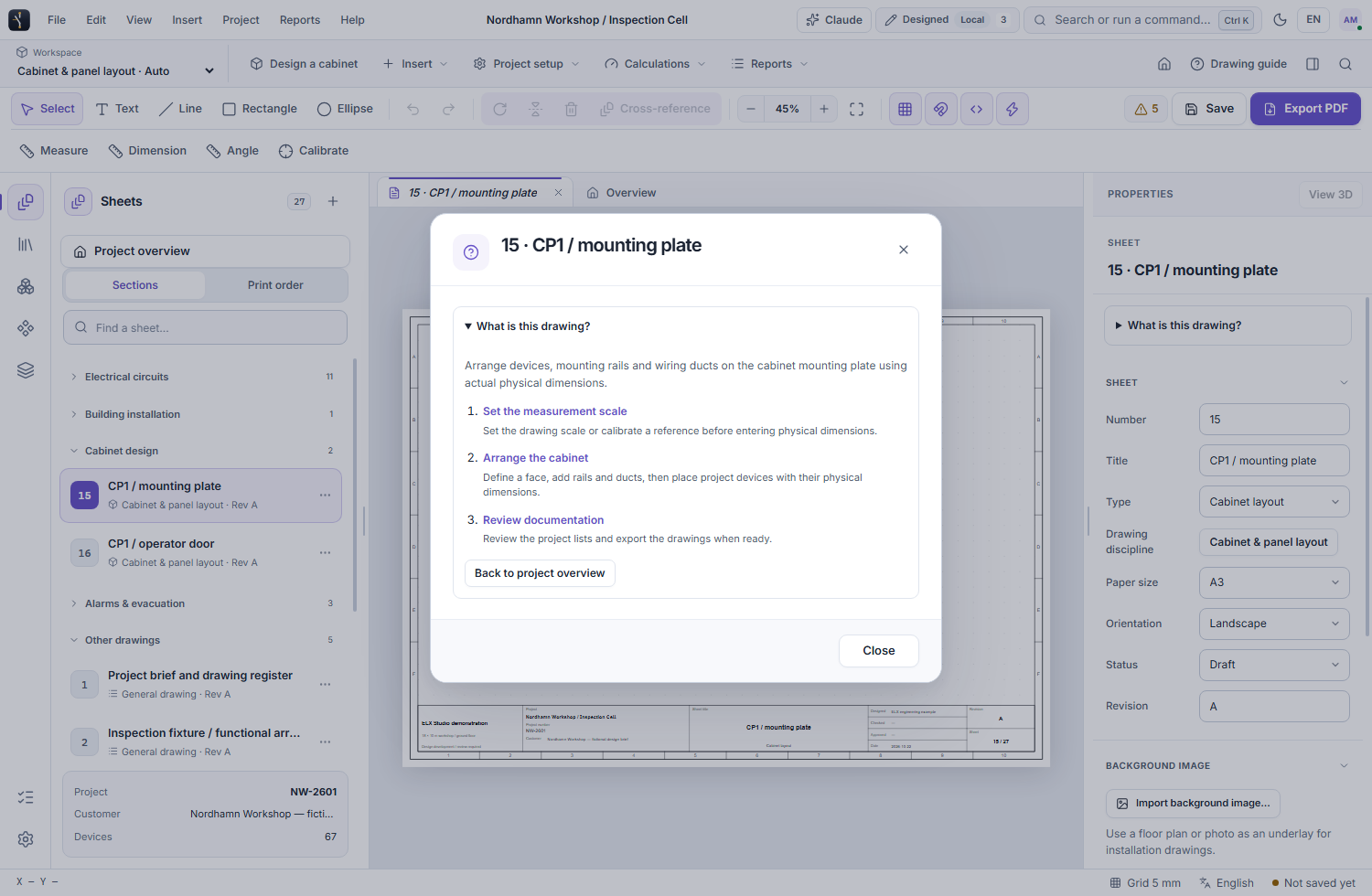
Understand a project before you start editing it. The project overview groups drawings by purpose, each drawing has its own guide, and direct actions take you to the tools needed for the next step.
All product workflowsStart with a manageable drawing set. Add the detail your project actually needs.
Sheets → Project overview. Select a drawing, use Continue, or choose Design a cabinet.
Use these capabilities together as the drawing moves from layout to a reviewed project.
New projects default to a cover and one working drawing. Review what each sheet is for before creating it. Larger machine, PLC, building and mixed templates remain available when the job needs them.
The overview separates project information, electrical circuits, building installation, cabinet design, alarms and evacuation, other drawings and generated views. Projects with more than eight sheets open here; Continue returns to the last active drawing.
Sections help you find a type of drawing. Print order shows the actual sheet sequence used for exports. Grouping leaves drawing names, numbers and export order intact; you choose when to reorder them.
Drawing guide explains the active sheet and links to relevant tools. Cabinet guidance distinguishes a door from a mounting plate. Generated views offer a link to their source when it is available.
Each workspace presents relevant drawing tools and library filters. Common editing and navigation controls stay available. Tooltips show shortcuts, and F1 opens the searchable shortcut reference.
Short explanations describe connections, terminals, PLC I/O, parts and cables before you open their reports. The overview connects drawing work to the documentation behind it.
Select a project profile and a small starting set, then inspect the sheet descriptions in the creation preview.
Use the overview sections or search by title, number or purpose. Open Drawing guide when the next step is unclear.
Use Add a drawing or Design a cabinet as the project grows. Review Print order before issuing the drawing set.
Request trial access and explore these tools in the Windows application, with an English or Swedish interface.